

Ambience beds take time for the wrong reason. The creative call is quick: night, suburban, a bit of wind, the odd car. The slow part is finding four or five recordings that fit and balancing them. Krotos Studio's two ambience tools do that first pass for you, and in 3.0 they've moved to where you'll find them.
Both now sit at the top of the Ambiences section in the main browser.
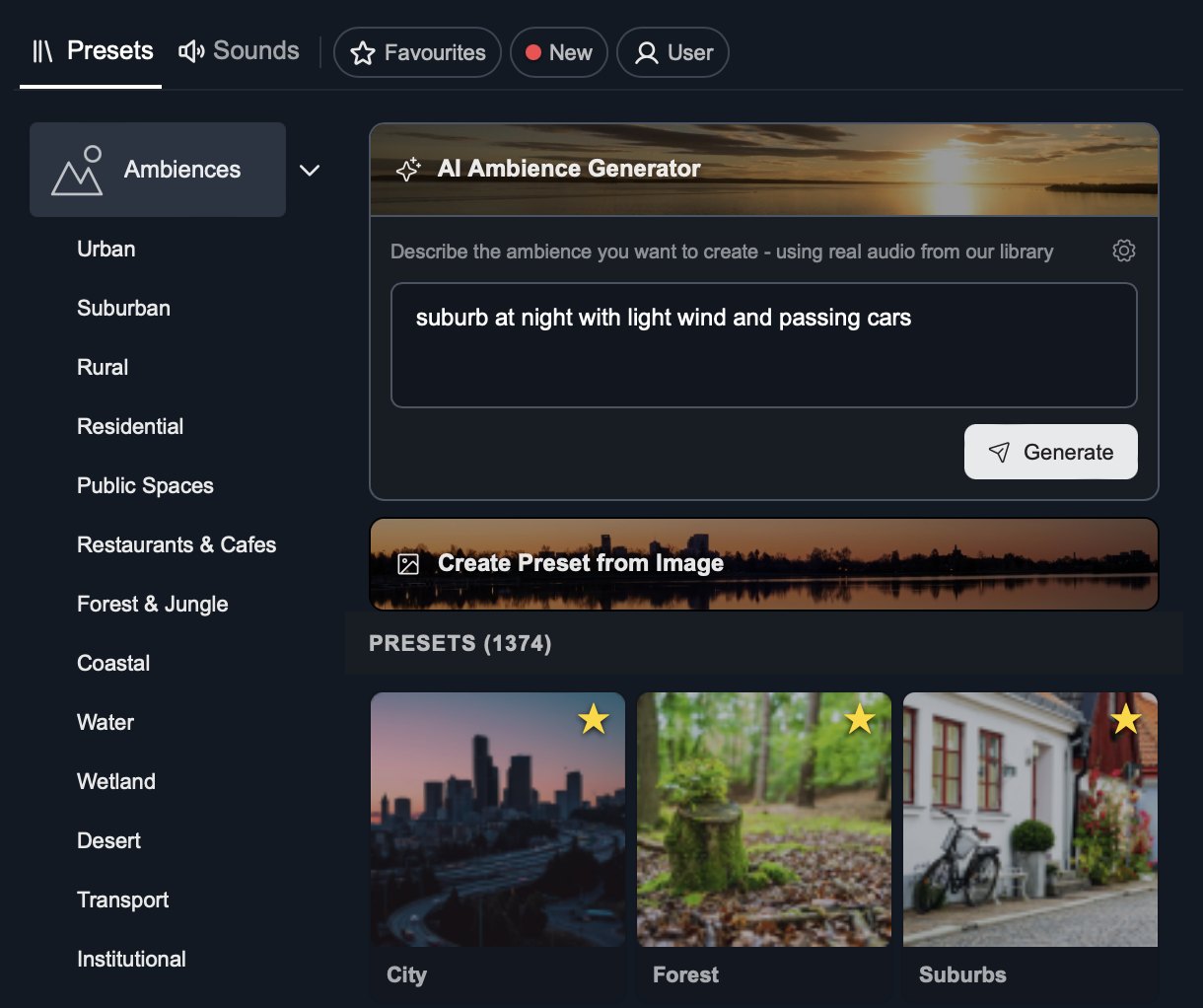
AI Ambience Generator
Describe the scene in plain words and click Generate. For example: "suburb at night with light wind and passing cars". Krotos Studio picks and arranges recordings from our library to match, and gives you a performable ambience preset.
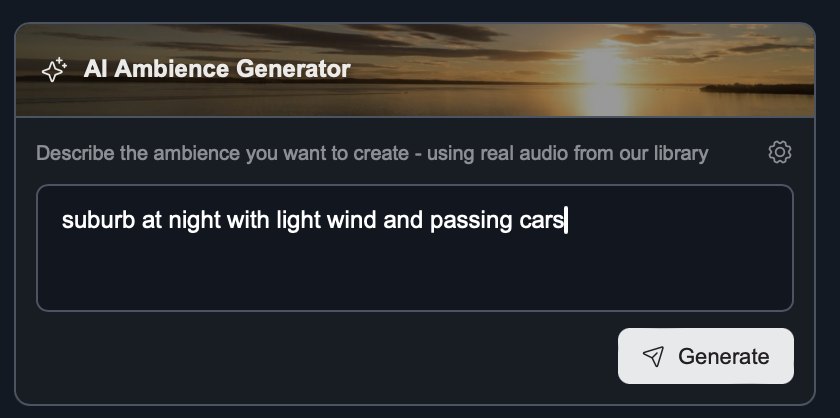
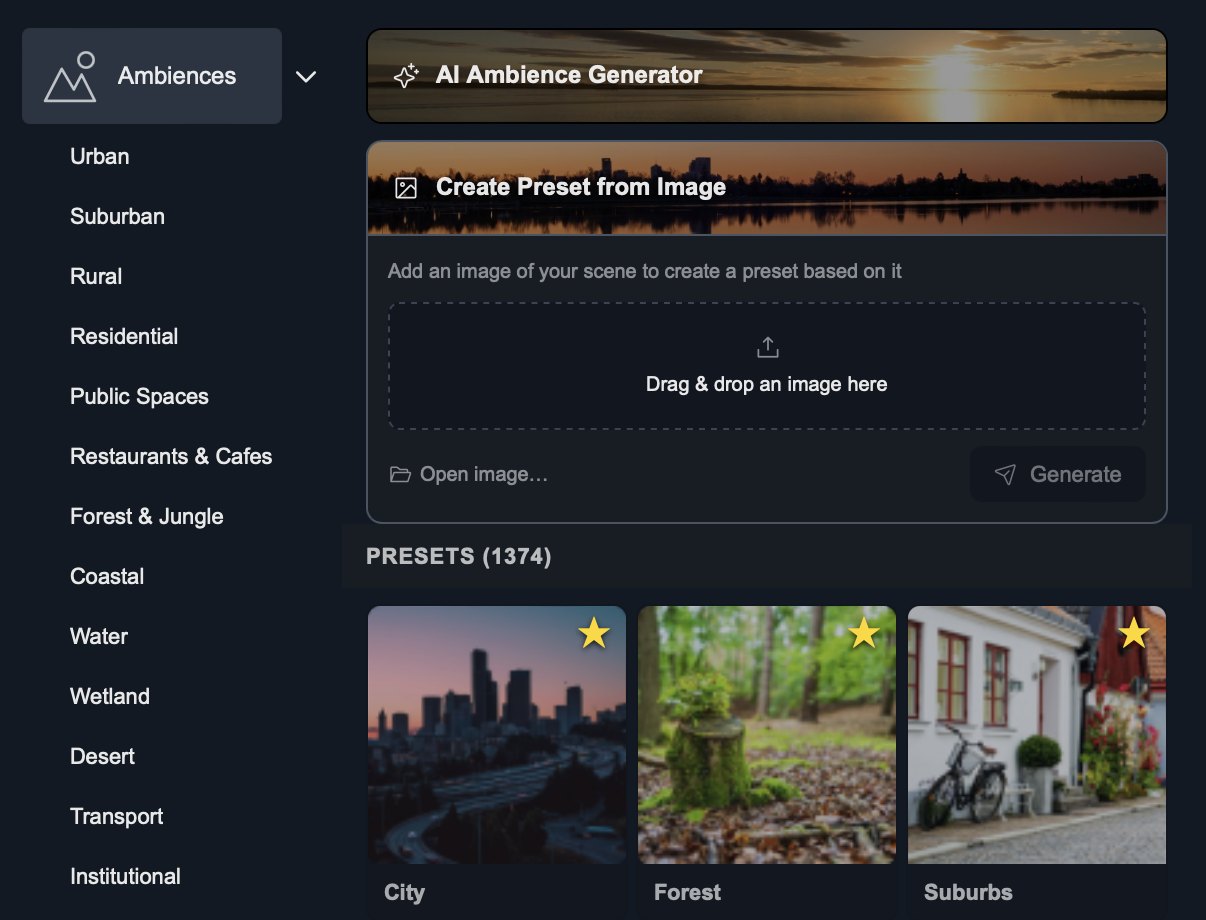
Image to Preset
Screenshot a frame from your edit and drag it into Image to Preset, or click Open image. Krotos Studio reads the scene and builds an ambience preset to suit it. Drag and drop is new in 3.0, so you can go from your timeline to a starting bed without saving a file first.
Get the next one in your inbox. Every part of Krotos Studio 3.0 gets a short breakdown, sent as it lands. Join the Krotos newsletter.
Real recordings, every time
Neither tool generates audio. The AI chooses and arranges real recordings made by Krotos sound designers, so what you hear is the same quality as the rest of the library, and every sound is royalty-free for commercial use.
Where it fits
For sound designers, it's a fast starting point for a bed you'll refine. For video editors, it's often the whole job: screenshot the shot and perform the result to length.
Want individual layers instead? Open the Sounds tab and browse Ambiences by subcategory.
Get the next one in your inbox. We're writing up every part of Krotos Studio 3.0 as it lands, plus the new sounds and presets each month. Join the Krotos newsletter.