

How you browse depends on how much screen you've given the app. A preset browser that looks right full screen is cramped beside a timeline, and the reverse. Krotos Studio 3.0 gives the browser three layouts so it fits either way.
Switching modes
Click the image icon at the right of the search bar to cycle through list, card and grid.

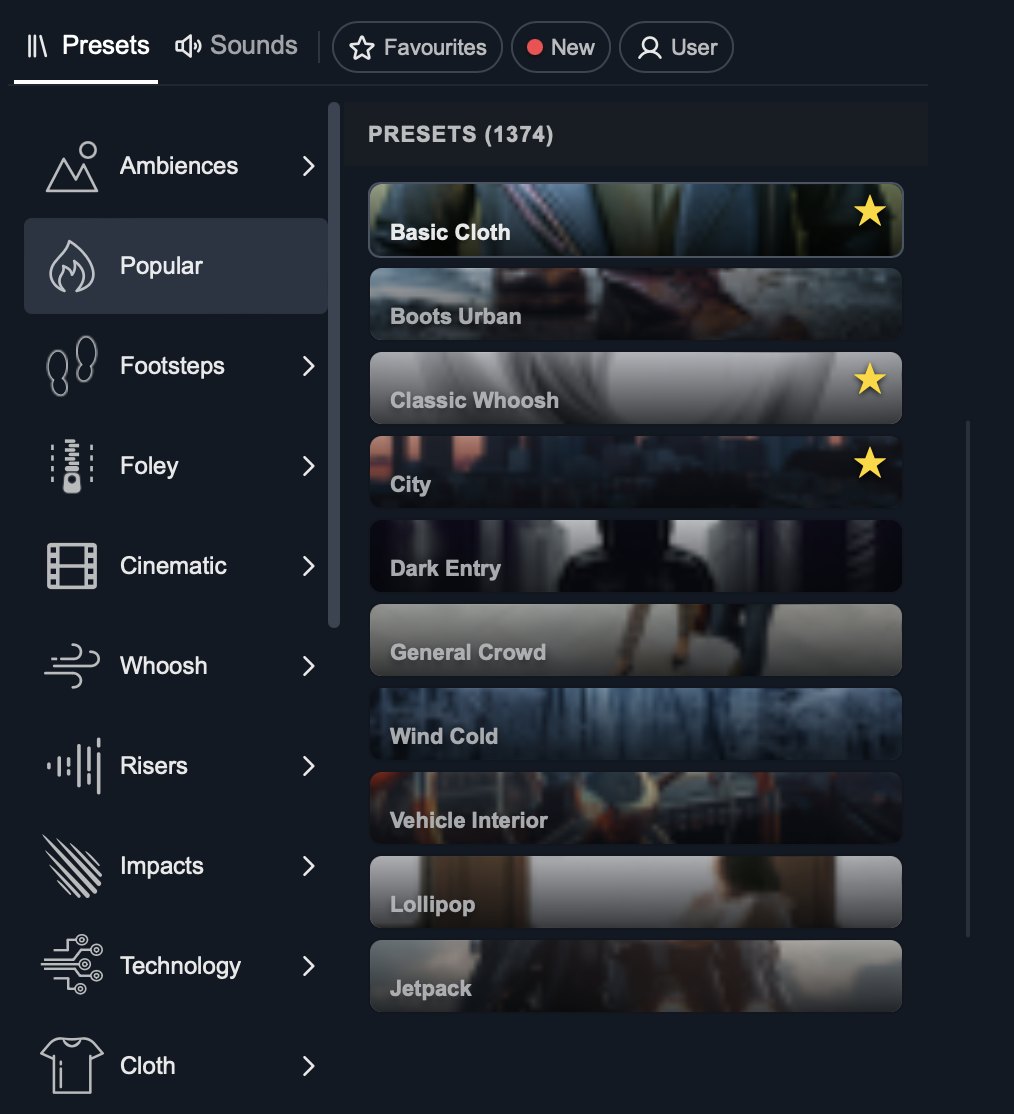
List
A narrow strip of artwork with the preset name across it. List packs the most presets into a small window, so it's the one to use when Krotos Studio is sized down beside your session.
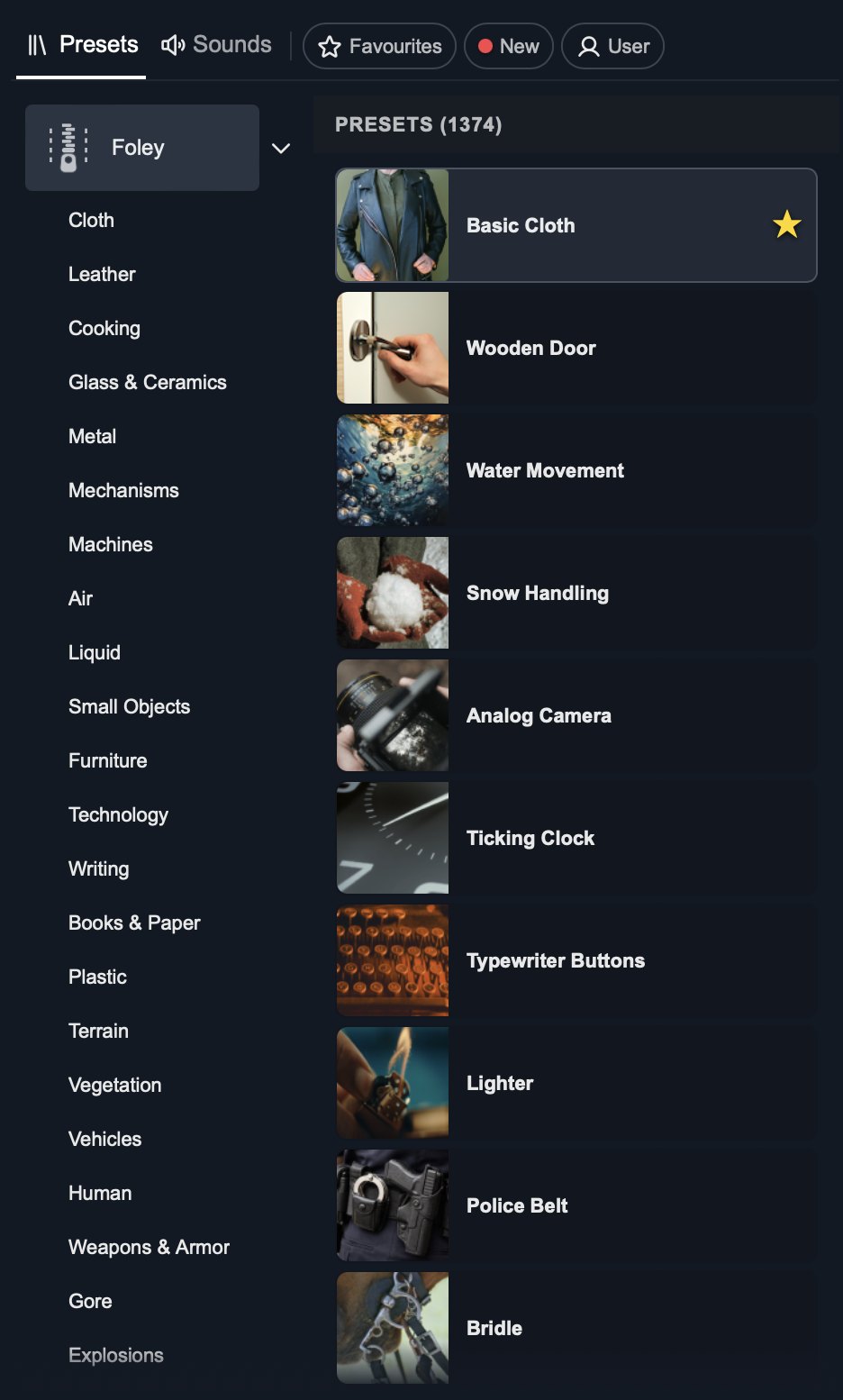
Card
A square thumbnail with the name beside it. Card gives you enough artwork to recognise a preset at a glance without giving up the readable names.
Get the next one in your inbox. We're writing up every part of Krotos Studio 3.0 as it lands. Join the Krotos newsletter.
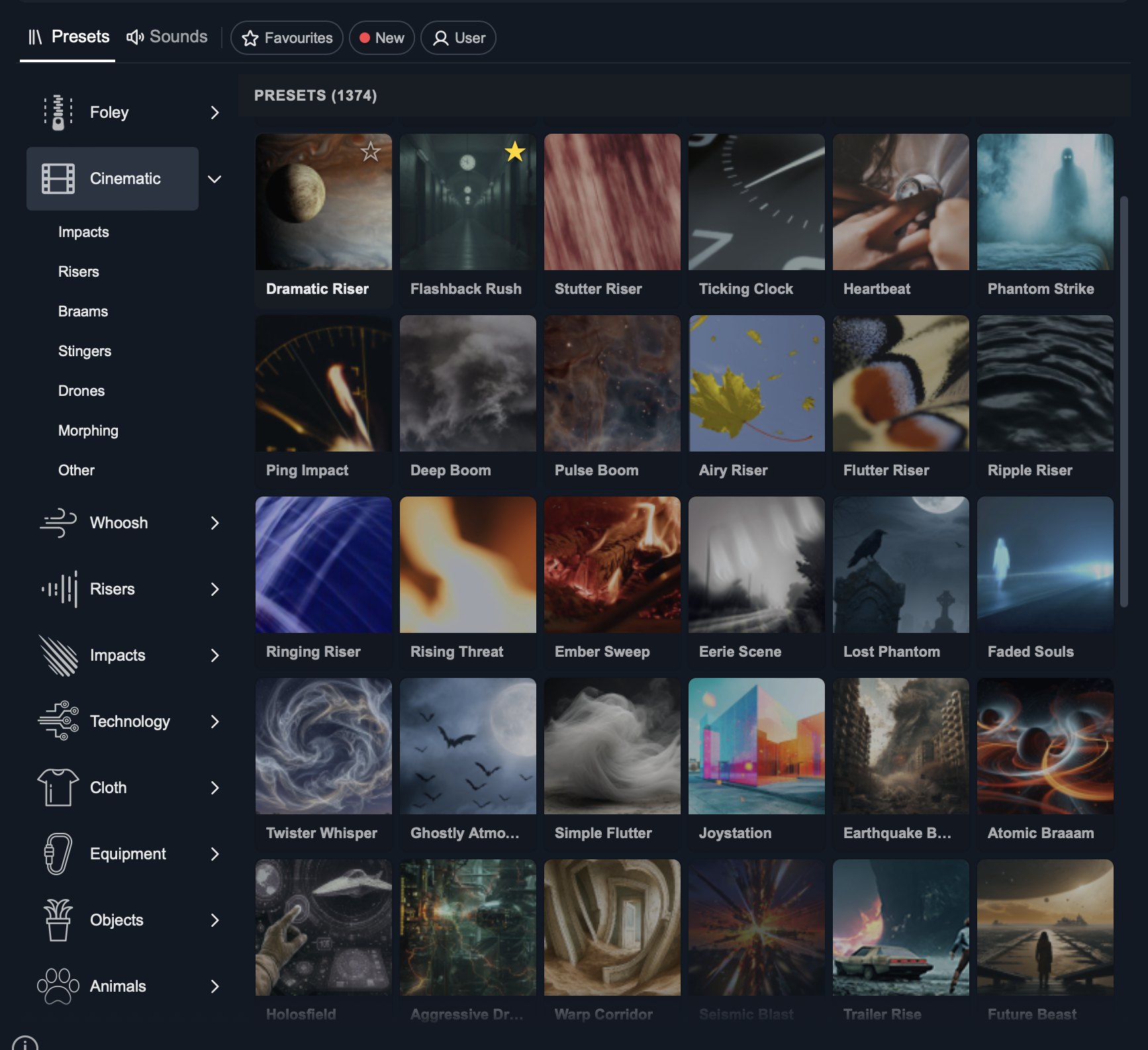
Grid
Large artwork in a grid. Grid works best with the window open wide, where you can see hundreds of presets at once and browse by eye.
Pair it with resizing
The thumbnail modes and the resizable standalone window are designed to work together: grid for a big window, list for a small one. How resizing works.
Get the next one in your inbox. We're writing up every part of Krotos Studio 3.0 as it lands, plus the new sounds and presets each month. Join the Krotos newsletter.