
Spotting is the slow half of sound design. You find the right sound, then spend longer than you'd like getting it onto the right frame. Send to Pro Tools handles the second part.
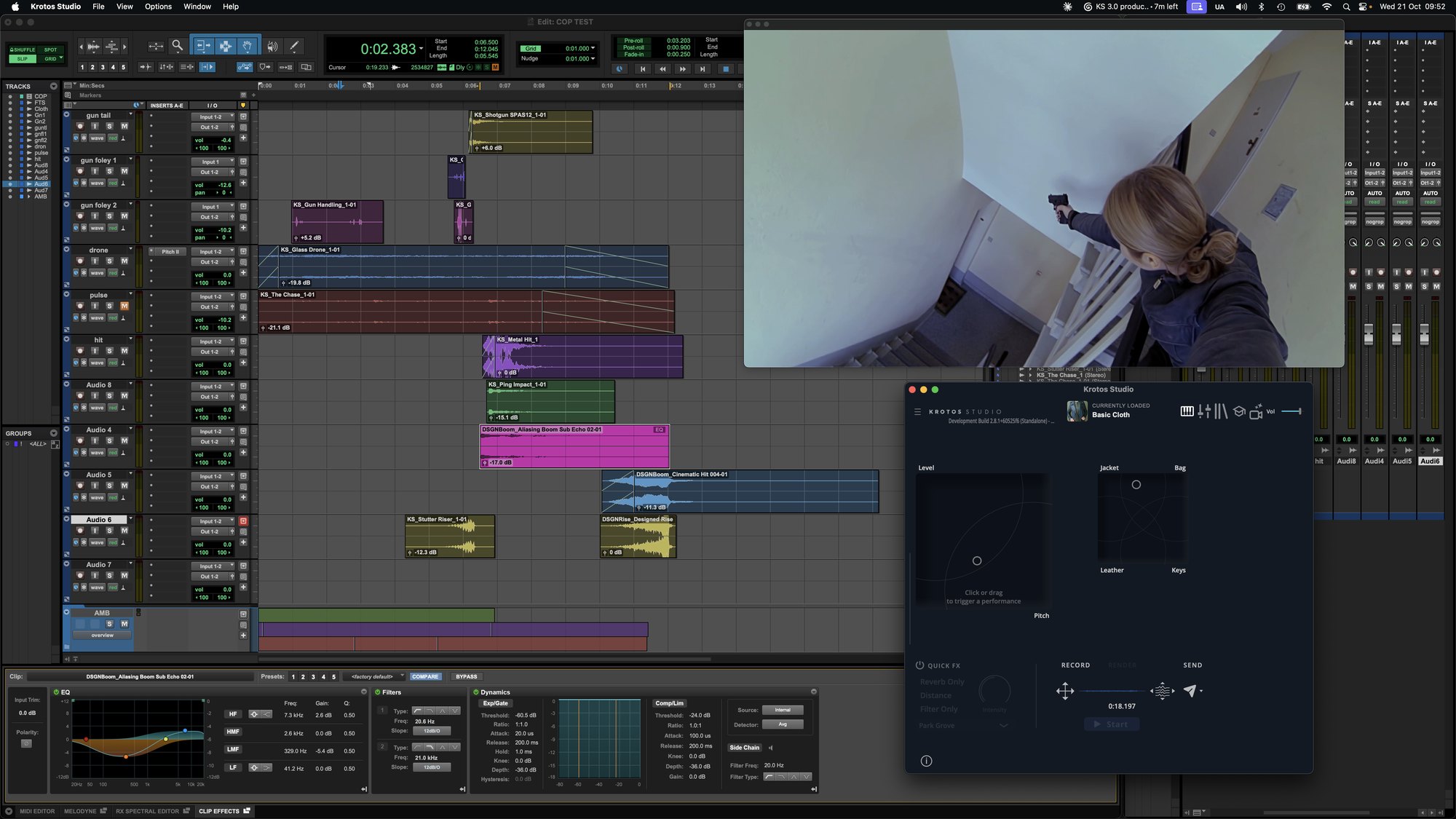
Put your Pro Tools cursor where the sound belongs, go to Krotos Studio, and click Send or press S. The sound lands at the cursor. It's the last step in the 3.0 workflow: find the sound, shape it to fit the picture, then get it straight onto the timeline.
Two places to send from
Perform View. Record a performance on the XY pads, then send it. The take goes to your cursor exactly as you played it, which suits footsteps, cloth and anything you've performed to picture.
The Sounds tab. Audition a single WAV, set its pitch and volume, then send it. This is the route for one-off hits like a latch or a glass set down on a table.

Get the next one in your inbox. Each part of Krotos Studio 3.0 gets its own breakdown, and we send them out as they land. Join the Krotos newsletter.
Setting it up
- Run Krotos Studio as the standalone app. Send to Pro Tools isn't available in the plugin versions.
- Open your Pro Tools session and place the cursor on the track and position you want.
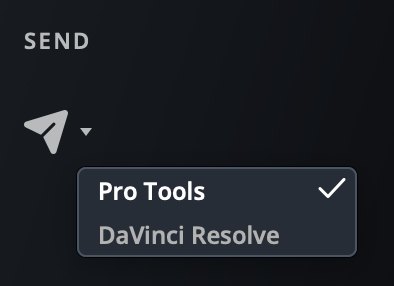
- In Krotos Studio, open the dropdown next to the Send arrow and check Pro Tools is ticked.
- Click Send, or press S.
Sends go to mono tracks as well as stereo.
DaVinci Resolve as well
The same dropdown lists DaVinci Resolve, so editors cutting in Resolve get a one-click route to the timeline too. In Premiere Pro or another app, drag the sound from Krotos Studio onto the timeline instead.
Pair it with a smaller window
Send works best with Krotos Studio sized down next to your session. Shrink the window to the perform controls, keep Pro Tools in view, and you can play, send and move the cursor without swapping between full-screen windows. Here's how resizing works.
Get the next one in your inbox. We're writing up every part of Krotos Studio 3.0 as it lands, plus the new sounds and presets each month. Join the Krotos newsletter.