
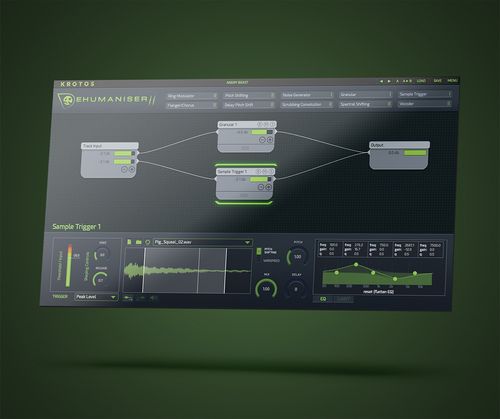
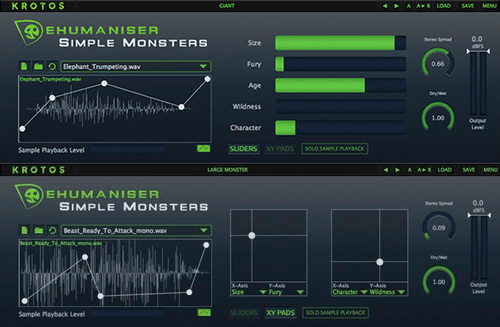
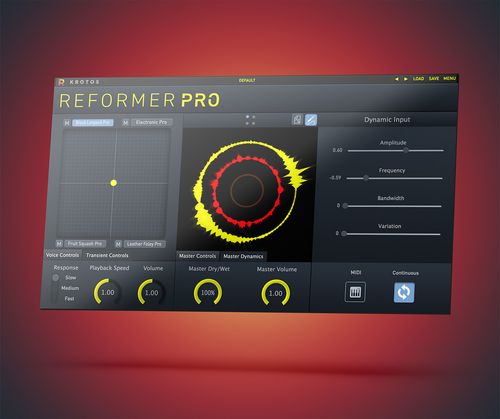
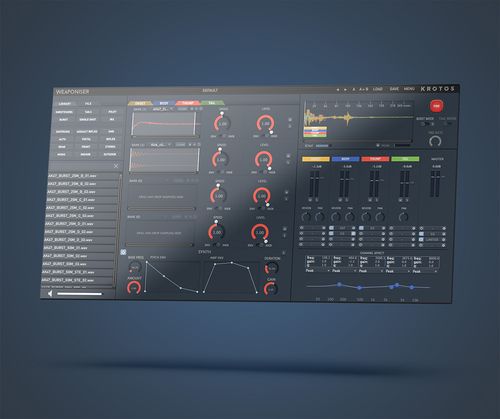













This quick alternatives comparison helps you pick the right Kapwing audio substitute depending on the job: instant trims and exports, batch splitting, AI-assisted clipping or full-on SFX and ambience generation that slots straight into Premiere Pro, DaVinci Resolve or game engines like Unity and Unreal.
Which alternative to Kapwing should you pick, at a glance
• Speed, Ideal for one-off trims and exports, choose a lean online cutter that opens in seconds and exports MP3/WAV without account friction.
• Deep SFX, Best for bespoke whooshes, crowds and foley, pick a specialised sound-design tool or library for editable stems and variety.
• Browser-first, If you must work in the browser and on any machine, use a web editor that supports basic cleaning and MP3 export, but expect limits on CPU-heavy processing.
• Batch splitting, For interviews and long recordings, use a batch split utility that auto-detects silences and exports named clips ready for the NLE.
• Trustworthy AI, When you want AI-assisted cleanup or smart clipping, favour tools that are transparent about provenance, licensing and give you undo and manual control.
When you only need an instant trim or export
If you have a single clip to trim, normalise and export, a minimal web cutter or a small desktop app will save time. You do not need a huge library, just reliable MP3/WAV export, fast load times and a straightforward UI.
When you need more creative SFX or ambiences
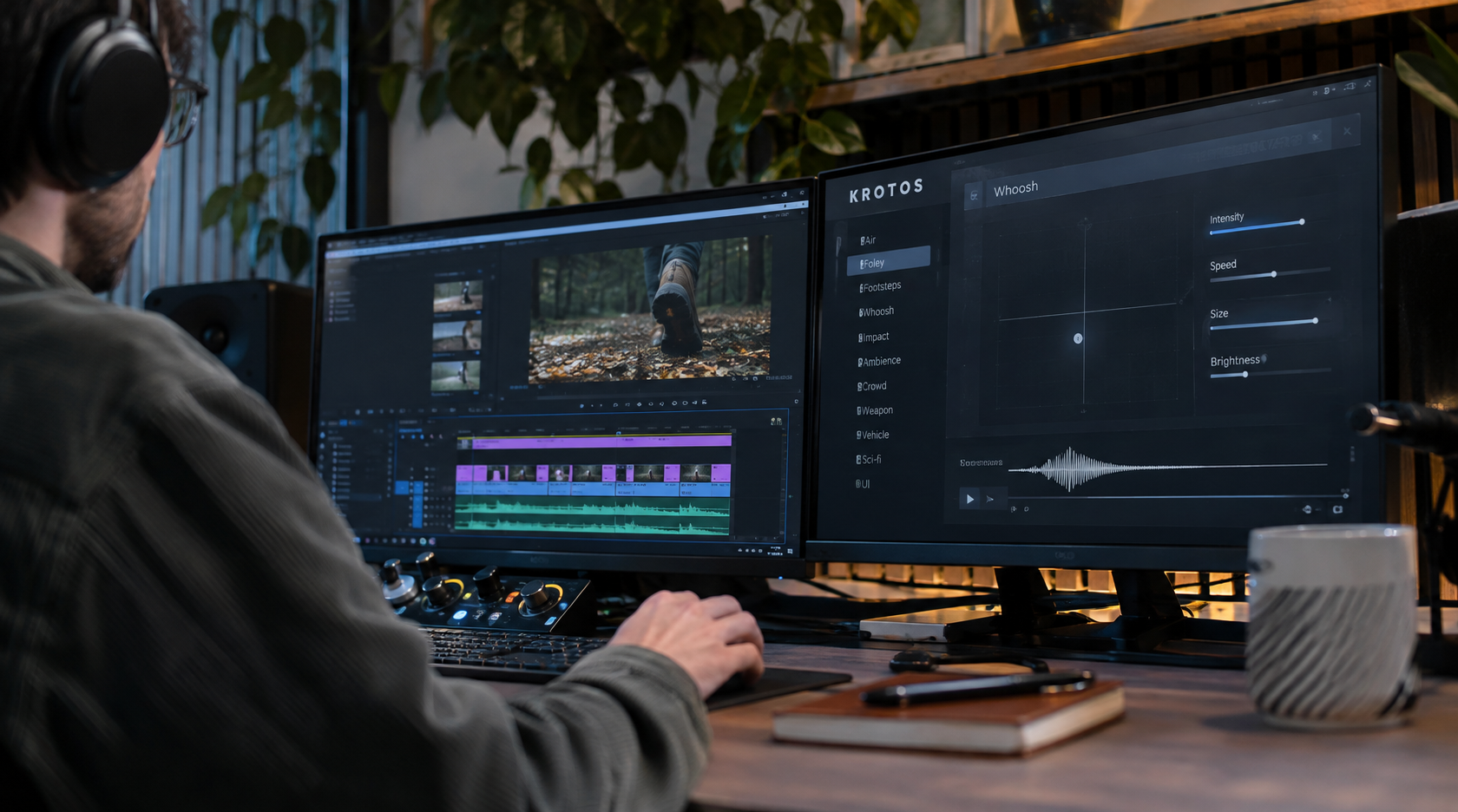
For cinematic or game work, generic editors fall short. Use tools built for SFX creation so you can audition variations, export stems, and tweak layers, which makes your whooshes and ambiences feel bespoke rather than pulled from a generic pack.
Match tool strengths to your task: a quick checklist
1. Need a single file trimmed, levelled and exported in under two minutes? Go browser-first.
2. Do you have hours of content to split, name and batch-export? Choose a dedicated splitter that supports silence detection and timestamped filenames.
3. Want multiple SFX variations, procedural whooshes or crowd layers? Use a sound-design generator or a large SFX library with source stems.
4. Must keep everything in the NLE and avoid roundtrips? Pick a tool with direct export to common formats and a predictable file structure.
5. Working for games and middleware? Ensure exports include stems and consistent naming for FMOD/Wwise import.
Quick test to decide
1. Is it one clip or many? Yes to one, pick a quick cutter.
2. Do you need custom SFX or many variations? Yes, pick sound-design/generator route.
3. Will you batch-process and re-import to Premiere or Resolve? Yes, pick a batch-splitting utility.
Fast workflow recipes: Premiere Pro and DaVinci Resolve
Recipe 1, Clean + replace a noisy clip in under 5 minutes
1. Duplicate the video track and export the audio-only clip or right-click and 'Edit Clip in Audition' equivalent.
2. Run a fast noise-reduction preset or AI clean, preview, then export the cleaned WAV.
3. Import cleaned WAV into your project, mute original, and align.
4. Automate volume and apply a subtle de-esser, then render master audio. Time saved, about 3 to 5 minutes versus manual spectral edits. Tip, keep a reusable noise-reduction preset.
Recipe 2, Quick whoosh/impact creation and sync
1. Generate or pull a whoosh from a generator or library, export two variants at different lengths.
2. Drop one under the hit, time-stretch or tempo-match to the edit, nudge for frame-accurate sync.
3. Layer a short impact bass, roll off highs and automate a transient snap.
4. Render a combined SFX track and tuck under the music bus. This saves about 5 to 10 minutes a shot. Tip, use nudging in frames not milliseconds for precision.
Recipe 3, Split long interviews into usable clips fast
1. Run silence detection or smart transcribe split to create markers.
2. Batch-export segments with a naming template including timecode and topic.
3. Re-import into Premiere or Resolve as a bin, or hand off WAVs to an editor.
4. Keep a log of takes and metadata for quick selection. Expect to cut an hour of manual work down to 10 to 20 minutes. Tip, export both WAV and low-bitrate MP3 for quick review.
When you need more than edits: rapid SFX and ambience creation
• Crowds, Pain, lifeless background. Right tool, layered crowd generators or multi-track libraries. 2-step win, pull three crowd layers, offset them, and automate a level ride.
• Footsteps, Pain, mismatched shoes and floor. Right tool, dedicated footsteps libraries with metadata. 2-step win, pick shoe+surface, trim to step timing, add slight tempo variance.
• Foley, Pain, unnatural movement. Right tool, foley libraries and simple synthesis. 2-step win, record quick room hits, layer with library clacks and EQ to taste.
• Ambience, Pain, flat or repetitive loops. Right tool, ambience constructor with stems. 2-step win, stack distant bed, a mid layer and an interactive texture, automate subtle movement.
• Whooshes, Pain, generic swoosh sounds. Right tool, procedural whoosh generator. 2-step win, create two speeds, pitch-shift one and crossfade for a bespoke sweep.
Export and naming best practice
Always export multiple variants and stems, name files with scene_take_variant_format like S03_T02_Whoosh_L.mp3 or S03_T02_Whoosh_LW.wav, and include tempo or length in the filename if relevant. For game work, export consistent sample rates and formats required by FMOD/Wwise and keep a manifest to speed middleware import.
AI, ethics and trust: what to check before you rely on automated audio
When AI features are involved, maintain human oversight and verify licensing. Check behaviour-backed indicators, not marketing claims, and prefer tools that allow easy rollback and manual fine-tuning.
Quick trust checklist
• Licensing clarity, confirm whether generated or library sounds can be used commercially and in games.
• Provenance transparency, ensure the tool states whether content is derived from third-party libraries or generated.
• Undo and export originals, you must be able to export source audio and revert AI changes.
• Manual control, AI should assist not replace creative judgement, offer parameter tweaks and dry/wet balances.
If a workflow promises fully automatic edits, treat it as a time-saver rather than a final mix. Keep a human in the loop for tonal decisions, sync and legal checks.
Try it yourself
Take your sound design further with Krotos Studio. Create custom sound effects, streamline your editing workflow and bring your projects to life without compromising creative control. Explore the Krotos Studio Black Friday deals and upgrade your sound design toolkit for less.